![frame_partymode-1.png]](https://support.giosg.com/hs-fs/hubfs/frame_partymode-1.png?height=40&name=frame_partymode-1.png)
SUCCESSFUL CALLS TOTALsuccessful_calls_inboundYou can access the Telephony report by first clicking the reporting link in the giosg Navigation bar.
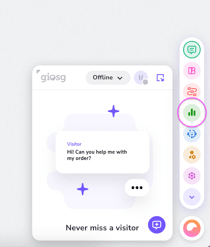
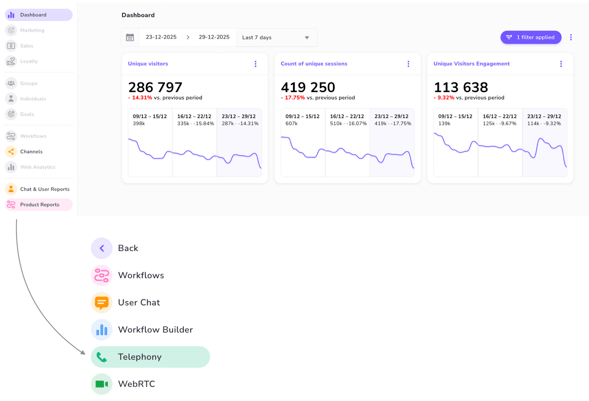
Once you're in the reporting, click Product reports and then Telephony. You can also navigate directly to directly to https://reporting.giosg.com/telephony
The reporting can be access by users with Reporting permissions (see "Managing users and teams").
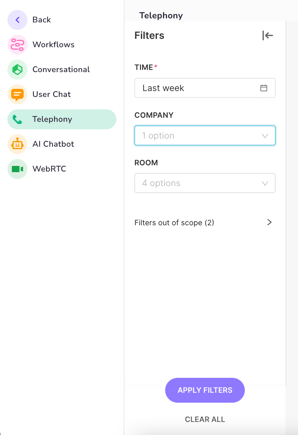

The report includes data about the below topics:
General overview:
Monitor the Telephony channel on a general level, by looking at for example the total number of calls and call outcomes.
- In the Overview tab you can follow the metrics from the beginning of the visitor's journey towards a call, all the way to potential outcomes of successful calls. If you're looking at a longer time period, you'll get overviews per month and per quarter automatically.
- "Impressions" tells you how many website visitors saw callback interaction.
- "Clicks" tells you how many website visitors clicked your callback interaction's buttons.
- "% Click/Impression" is percentage of impressions with clicks.
- "Requests" tells you how many calls were initiated by the visitors. This number only includes the callback requests. Calls an agent starts themselves, or scheduled callbacks via calendar are not counted to this number.
- "% Requests/Clicks" is requests per clicked callback interaction
- "Successful Calls Inbound" Both parties answered and the visitor answered first. Inbound/outbound on this reporting table depends on which party has been configured to be called first!
- "Successful Calls Outbound" Both parties answered and the agent answered first. Inbound/Outbound is only calculated from first call during the session. For example if the agent needs to call back to the visitor and the first call was inbound, we are not reporting this second call as a separate outbound call.
- "Succesfull Calls Total" is sum of inbound and outbound
- "% Succesfull Calls Inbound/Requests" tells percentage of requests with succesfull call. This number can be more than 100% if there are calls strated without callback request.
- If you're using the lead qualifier feature, which asks agents to classify calls (as invalid / sale / no sale) when they end them, the report will also include this information. The conversion is calculated from all calls with an assigned outcome.
- The information in the Requests tab complements the Overview tab, by giving you more information about the inbound and outbound call requests you've received in the selected timeframe. Note that with PBX connection initiated information might be missing, which result all calls to be marked as outbound calls.
- "Requests" is the same as in Overview
- "Request Initiated" tells number of actual dial attemps.
- "Request Not Initiated" tells number of sessions where no call leg was ever started — typically the agent never accepted the request, the visitor's number failed validation, or the request expired.
- "% REQUEST INITIATED / REQUESTS" is the share of requests that led to a dial attempt
- "INBOUND CALLS (REQUESTS INITIATED)" Calls classified as inbound in which at least one leg was dialled
- "INBOUND CALLS SUCCESSFUL" Calls classified as inbound and which both visitor and agent connected.
- "OUTBOUND CALLS" Agent was connected to the call
- "OUTBOUND SUCCESSFUL CALLS" Agent was first connected to the call. Both visitor and agent connected succesfully to the call.
- "TOTAL CALLS" All calls where at least agent or visitor was dialled, regardless of direction or outcome
- "TOTAL SUCCESSFUL CALLS" number of calls
both visitor and agent connected succesfully to the call. - If you're using the lead qualifier feature, which asks agents to classify calls (as invalid / sale / no sale) when they end them, the report will also include this information. The conversion is calculated from all calls with an assigned outcome.
Agent performance:
You can monitor data per agent, and look at individual and team level calls, call outcomes and call durations.
- You'll find this information in the per Agent and per Team tabs (Team data is available only if you've divided your agents into Teams as instructed here).
Call logs:
See a list of all calls during a selected time period and get information about each call.
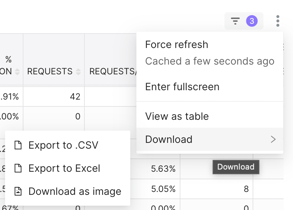
! Note that you can also export the data to excel or csv or even download the report as an image.